The YouTube player loads only when you select “Play video”. During playback, viewing data is sent to YouTube.
Open on YouTube ↗One project, multiple AI tools — why give them a shared server
Build a shared workspace for ChatGPT, Claude and other compatible AI applications: start with three project documents, connect read-only access, verify sources, then add one narrowly scoped action. See where a personal VPS, MCP and RAG fit, and how one AI tool can continue from another's saved work.
Russian audio · English subtitles available
What you can try
- Start with the brief, agreed decisions and current status
- Connect read-only access and verify the source and version
- Retrieval must respect document permissions
- Save changes after reviewing and approving them
Project concept by Eduard Ponomarev. The script, animation and synthetic narration were created with AI. The interaction diagram and example project are fictional; available connections and permissions depend on the application and your configuration.
GenAI HR on YouTube ↗A prompt for AI
Add your task and the conditions you already know. Use a fictional example or information you can share.
Using the connection already configured, read the project documents you are authorized to access: the brief, agreed decisions and current status. State the goal, constraints and next step. For each conclusion, name the document and its version. If you cannot read a source or the information is missing, say so. Propose any status change as a separate draft and wait for my approval before saving it.
English transcript
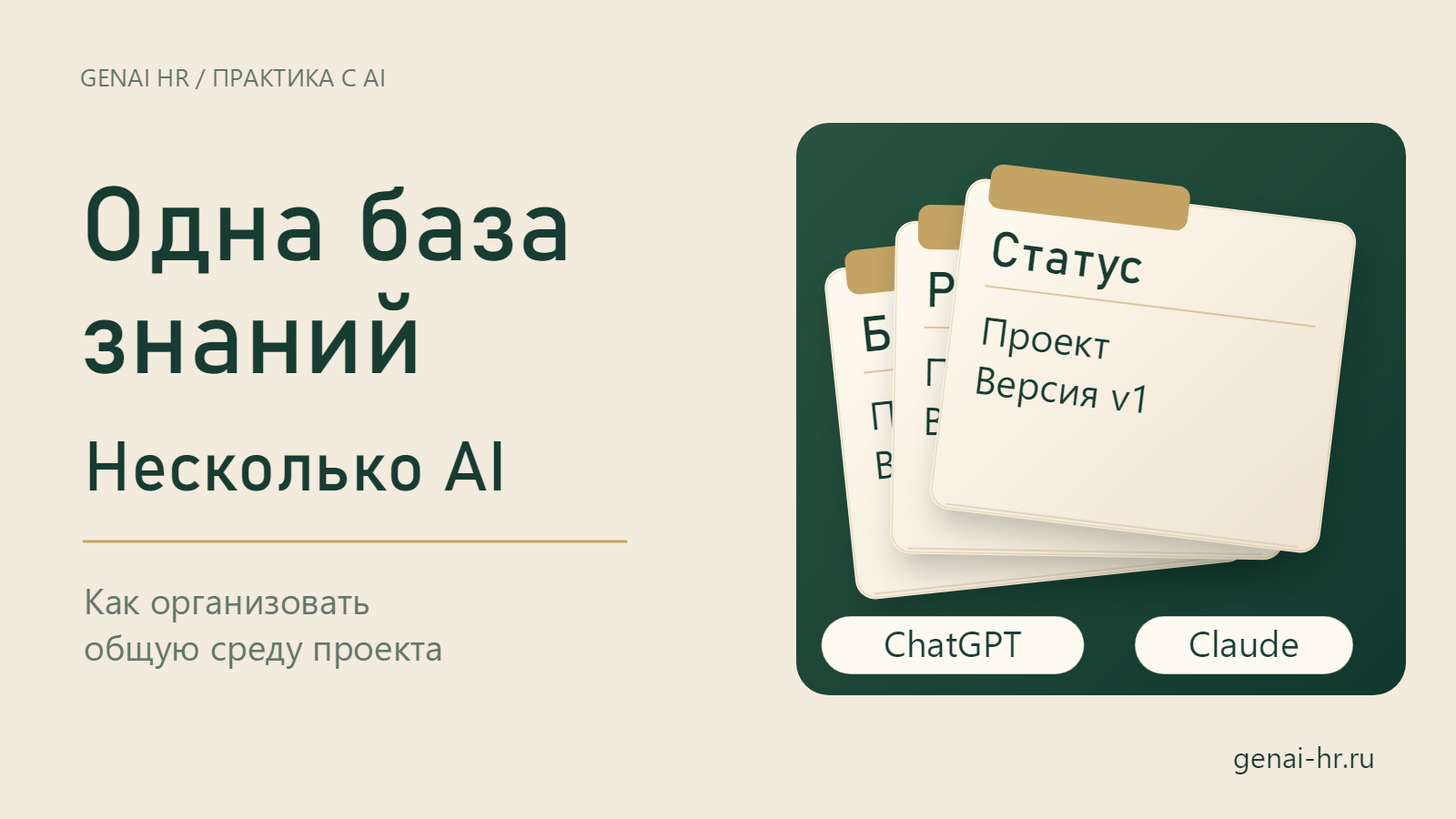
You discuss a website with ChatGPT and its structure with Claude, then keep carrying decisions from one chat to the other. You can set up a shared workspace that different AI tools can access.
A personal VPS—a rented virtual server—can host it. It can hold your project documents and run search and other tools. Those tools might prepare files, validate data or launch your service. The models themselves can still run with their providers. Your chat histories do not merge automatically.
Think of it as a shared workshop. At the centre are up-to-date documents. Each connection has its own permissions. Let's start with four steps.
First, create three documents: a brief, agreed decisions and the current status. Record the goal, constraints and next step. Together, they become your agreed reference for the project.
Second, set up secure access. One option is MCP, a standard for connecting AI applications to data and tools. Use HTTPS and authorization. Start with read-only access to a selected folder. Support depends on the application, account and settings. Set up the connection separately in each client.
Third, test it. In the first client, ask it to read the brief and identify the source. Ask the same question in the second client. Compare the document versions. Similar answers without actually reading the file don't prove anything.
When you have more material, add RAG. Before answering, search retrieves relevant passages from authorized sources. We are adding context to the request, not retraining the model. Search can get things wrong too. The system must check source permissions before retrieval.
Fourth, add one narrowly scoped action. For example, preparing an update to the project status. AI suggests: “Brief approved; next step: prototype.” You review the change and confirm it should be saved. This creates a new version and an action record. Ask the second client for the status and source again: it should now read the update.
Keep keys separate from documents, in a protected secret store. Don't paste passwords into chat. If you use a cloud model, the selected passages are sent to its provider. Set up backups and an activity log, cap the number of requests and monitor server and API spending.
Start with three documents and a reading test you can verify. Let the shared workspace grow as your tasks require.
Sources and further reading
Official documentation for a closer look at the technologies discussed in this episode.
- MCP — Architecture overview
- MCP — Authorization
- MCP — Security Best Practices
- OpenAI — Plugins Quickstart
- Claude — Custom connectors using remote MCP
- OpenAI — Retrieval
- Retrieval-Augmented Generation for Knowledge-Intensive NLP Tasks
- Microsoft — Document-level access control in Azure AI Search
- Yandex Cloud — VMs in Compute Cloud
- Yandex Lockbox — Service overview